Recipients source listings in creating an email macro in MS Acces
If in the Create Email Macro dialog you selected Multiple recipients, in MS Accesss there are three additional possible sources you can select from: Table, Query and Form, possibly a subform. Here we show the typical code that correspond to these choices.
Send a separate Email to each recipient. If so, a list box
Add Variablesappears showing the other fields or controls available alllowing you to select them to make their values available for email merge.
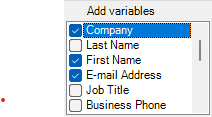
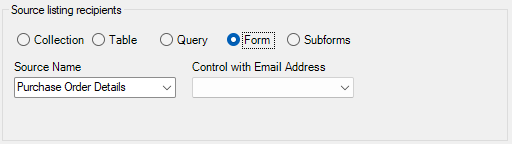
Table or Query
Typically email addresses in Access are stored in a table. With actual use, such as for mailing, you will often not get records directly from the table, but via a selection query. Using queries you can
- Filter the records you want or don't want in the context of use.
- Combine with other data to be used in the email from related tables.

To send mails from this table or query, in the Recipients source listings group box:
- Select Table or query.
- In the Source Name combo box, select a table, e.g. Customers.
- In the Column with Email Address combo box, select Email Address
After OK the boilerplate code now loops over the email addresses in the worksheet.
Loop to fill recipients from a table or query
Dim appMailer As VBAMailer.Application
Set appMailer = New VBAMailer.Application
Dim mi As VBAMailer.MailItem
Dim db As DAO.Database
Dim rst As DAO.Recordset
Set db = CurrentDb
Set rst = db.OpenRecordset("Customers", dbOpenForwardOnly)
Set mi = appMailer.CreateItem(OlItemType.olMailItem)
With rst
    Do While Not .EOF
        Dim strEmailAddress As String: strEmailAddress = Nz(![E-mail Address])
        mi.Recipients.Add strEmailAddress
        .MoveNext
    Loop
.Close
End With
Loop to fill recipients from a Form
Using a form as source of recipients is in several ways different from using a table.
- A form must be open to retrieve data from it.
- A form lets you control directly the relevant context, e.g. a schedule you want to send to team members.
- You can add a button to start creating the email(s).
- You may use a list of recipients in a subform
Code inserted by the Create Email Macro dialog may look like below. Notice that
- The form must be open.
- Moving through the form is done using the form's RecordsetClone.
- The current record displayed on the form is set using the Bookmark property.
- The value of a control is obtained using a function ControlValue. This function is included in module AccessControl which is added to the project.
- Lets you select Bound or Display value (default).
- Handles Null value.
- Apply formatting using the VBA Format function, extended for booleans.
Dim mi As VBAMailer.MailItem
Const cstrFormName As String = "Employee List"
Dim rst As DAO.Recordset
Dim frm As Form
On Error Resume Next
Set frm = Forms(cstrFormName)
On Error GoTo 0
If frm Is Nothing Then
    MsgBox "Open form '" & cstrFormName & "'", vbCritical
    GoTo HandleExit
End If
Set rst = frm.RecordsetClone
With rst
    Do While Not .EOF
        frm.Bookmark = .Bookmark
        Set mi = appMailer.CreateItem(OlItemType.olMailItem)
        Dim strFirstName As String: strFirstName = ControlValue(frm.Controls("First Name"))
        Dim strEmailAddress As String: strEmailAddress = ControlValue(frm.Controls("E-mail Address"))
        With mi
            .To = strEmailAddress
            .HTMLBody =
            .Send
        End With
        .MoveNext
    Loop
    .Close
End With
Recipients in a subform
Having recipients in a subform allows you to send individual emails based on a common set of data contained on the main form. To use this you need to first open the main form containing it. This will add the extra choice Subforms - only if they are present on the active form.