Using recipients source listings in creating an email macro in Excel
A person or organization an email is sent to is called a recipient. If in the create email macro you checked Multiple recipients, you can select a source to obtain the email addresses from. In Excel there are three additional possible sources of recipients you can select from: Worksheet, Range, Table (ListObject). Here we show the typical code that correspond to these choices.
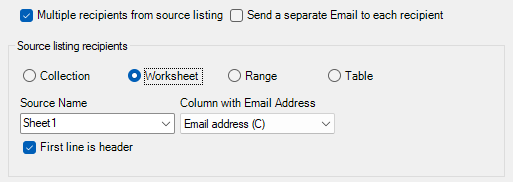
Email recipients from Worksheet
A common scenario is where you keep the email addresses in a worksheet.
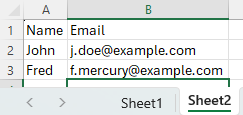
To send mails from this worksheet, in the Recipients source listings group box:
- Select Worksheet.
- In the Source Name combo box, select Sheet2.
- In the Column with Email Address combo box, select Email
- Generally the first line in the worksheet is reserved for headings. If not, uncheck First line is header
After OK the boilerplate code now loops over the email addresses in the worksheet.
Loop to fill recipients from worksheet
Dim ws As Worksheet
Set ws = Worksheets("Sheet1")
Dim rng As Range
Set rng = ws.UsedRange
Dim r As Long ' Row index
Set mi = appMailer.CreateItem(OlItemType.olMailItem)
For r = 2 To rng.Rows.Count
    Dim strEmailaddress As String: strEmailaddress = rng.Cells(RowIndex:=r, ColumnIndex:=2).Value
    mi.Recipients.Add strEmailaddress
Next r
Loop to fill recipients from a fixed Range
If the recipients list does not start neatly top left on a worksheet you may provide a Range address.
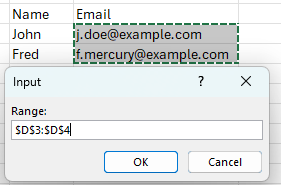
Here you can either specify the range yourself, e.g. Sheet1!D2:F6,
or you can in the combo box choose either a named range or Select... which opens the Excel Range selection inputbox.
Dim mi As VBAMailer.MailItem
Dim rng As Range
Set rng = Range("Sheet3!$D$3:$D$4")
Dim r As Long ' Row index
Set mi = appMailer.CreateItem(OlItemType.olMailItem)
For r = 1 To rng.Rows.Count
    Dim strColumn1 As String: strColumn1 = rng.Cells(RowIndex:=r, ColumnIndex:=1).Value
    mi.Recipients.Add strColumn1
Next r
Email recipients from a range containing addresses
Alternatively, the email addresses may be retrieved from a specified or selected range.
Loop to fill recipients from a selectable Range
In the above, the range is fixed at the time of creating the mailer macro. It is also posible to deley the choice of address to the moment of actual use, using one of the other options in the combo: Selection (range selected) or CurrentRegion (select a cell, email addresses are obtained from all cells that are not separated by empty row or column).
Loop to fill recipients obtained from a range selection dialog
Dim mi As VBAMailer.MailItem
Dim rngInput As Range
On Error Resume Next
Set rngInput = Application.InputBox(Prompt:="Select range or cells with email addresses:", Type:=8)
If Err.Number > 0 Then GoTo HandleExit 'False - prevent type mismatch error
On Error GoTo 0
Dim rngCell As Range
Set mi = appMailer.CreateItem(OlItemType.olMailItem)
With mi
    For Each rngCell In rngInput.Cells
        If Application.WorksheetFunction.IsText(rngCell) Then
            .Recipients.Add rngCell.Value
        End If
    Next rngCell
Loop to fill recipients obtained from the current region of selected cell
Set rngInput = Application.InputBox(Prompt:="Select a cell in the area with email addresses:", Type:=8)
If Err.Number > 0 Then GoTo HandleExit 'False - prevent type mismatch error
On Error GoTo 0
If rngInput.Areas.Count > 0 Then
    MsgBox "Only select a single range", vbOK + vbExclamation
    GoTo SelectCell
End If
Dim rngCell As Range
Set mi = appMailer.CreateItem(OlItemType.olMailItem)
With mi
    For Each rngCell In rngInput.CurrentRegion.Cells
        If Application.WorksheetFunction.IsText(rngCell) Then
            .Recipients.Add rngCell.Value
        End If
    Next rngCell
Loop to fill recipients from a table (ListObject)
Even as developers in VBA tend to mostly use plain worksheet ranges for data tables, ListObjects are increasingly favored when structured references, dynamic resizing, and modern Excel features are needed.
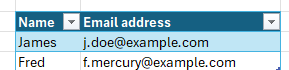
Below shows the relevant code produced by the Create Email Macro dialog.
First, the table (ListObject) is identified.
The ListObject gives direct access to the rows to loop over through property DataBodyRange.
The correct column cell to provide the email address is in
Dim lstObj As ListObject
Set lstObj = Worksheets("Sheet1").ListObjects("Table1")
Dim rng As Range
Set rng = lstObj.DataBodyRange
Dim r As Long ' Row index
Set mi = appMailer.CreateItem(OlItemType.olMailItem)
For r = 1 To rng.Rows.Count
    Dim strEmailaddress As String: strEmailaddress = rng.Cells(RowIndex:=r, ColumnIndex:=2).Value
    mi.Recipients.Add strEmailaddress
Next r